📍 1. Basic Arduino GPS Tracker
Here are some great Arduino-based GPS Tracker Project Ideas you can build — from simple location tracking to full smart systems. Each includes components, use cases, and enhancement options:
A great beginner project to understand how to log and display location.
⚠️ Attention !
Before starting any project implementation, please read the Safety & Legal Disclaimer section at the bottom of this page. It contains important guidelines to ensure safe and responsible usage.
🧰 Components:
- Arduino Uno/Nano
- NEO-6M GPS Module
- OLED Display (Optional)
- SD Card Module (for data logging)
- Battery Pack (e.g., 9V or LiPo)
- Jumper wires, breadboard
🔧 Features:
- Displays latitude and longitude on Serial Monitor or OLED
- Logs data to SD card
- Can be used for basic movement tracking (bicycle, pet collar, etc.)
Here’s the Arduino code for the Basic GPS Tracker using a NEO-6M GPS module and an Arduino Uno:
🛰️ Basic GPS Tracker – Arduino Code
#include <SoftwareSerial.h>
#include <TinyGPS++.h>

// GPS Module RX to pin 4, TX to pin 3
SoftwareSerial gpsSerial(4, 3);
TinyGPSPlus gps;

void setup() {
  Serial.begin(9600);       // Serial monitor
  gpsSerial.begin(9600);    // GPS module
  Serial.println("GPS Tracker Starting...");
}

void loop() {
  while (gpsSerial.available()) {
    gps.encode(gpsSerial.read());

    if (gps.location.isUpdated()) {
      Serial.print("Latitude: ");
      Serial.println(gps.location.lat(), 6);
      Serial.print("Longitude: ");
      Serial.println(gps.location.lng(), 6);
      Serial.print("Speed (km/h): ");
      Serial.println(gps.speed.kmph());
      Serial.println("----------");
    }
  }
}

🧰 Required Libraries:
- TinyGPS++
Install it from:Sketch→Include Library→Manage Libraries…→ Search for TinyGPS++
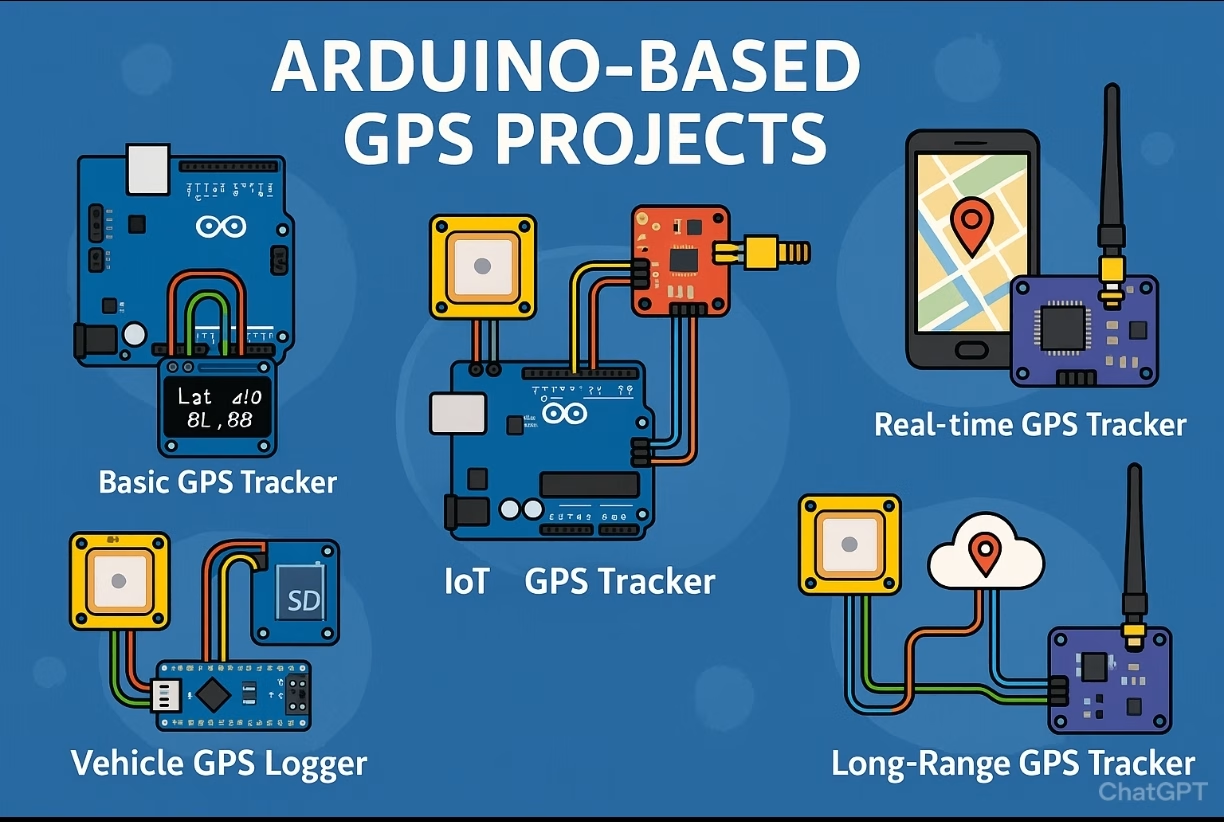
🔌 Wiring (As shown in diagram above):
- GPS VCC → 5V
- GPS GND → GND
- GPS TX → Arduino pin 4
- GPS RX → Arduino pin 3
🔁 Extensions:
- Add a real-time clock to timestamp locations
- Add push-button to mark a waypoint
📡 2. GPS + GSM Real-Time Tracker
Send live location updates via SMS or mobile network.
🧰 Components:
- Arduino Uno/Nano
- NEO-6M GPS Module
- SIM800L GSM Module
- LiPo Battery + Boost Converter
- Antennas for both modules
🔧 Features:
- Sends GPS coordinates to a predefined number via SMS
- Can be queried remotely (“Where are you?”)
- Useful for tracking vehicles, parcels, children, etc.
📡 GPS + GSM Real-Time Tracker – Arduino Code
#include <SoftwareSerial.h>
#include <TinyGPS++.h>

// GPS: RX to 4, TX to 3
SoftwareSerial gpsSerial(4, 3);  // GPS
SoftwareSerial gsmSerial(7, 8);  // GSM: RX to 7, TX to 8

TinyGPSPlus gps;

void setup() {
  Serial.begin(9600);
  gpsSerial.begin(9600);
  gsmSerial.begin(9600);

  Serial.println("Initializing GSM module...");
  delay(1000);
  gsmSerial.println("AT");       // Check GSM module
  delay(1000);
  gsmSerial.println("AT+CMGF=1"); // SMS text mode
  delay(1000);
}

void loop() {
  while (gpsSerial.available()) {
    gps.encode(gpsSerial.read());

    if (gps.location.isUpdated()) {
      float latitude = gps.location.lat();
      float longitude = gps.location.lng();

      String locationURL = "https://maps.google.com/?q=";
      locationURL += String(latitude, 6);
      locationURL += ",";
      locationURL += String(longitude, 6);

      Serial.println("Sending SMS with GPS location...");
      gsmSerial.println("AT+CMGF=1");
      delay(500);
      gsmSerial.println("AT+CMGS=\"+1234567890\"");  // Replace with your phone number
      delay(500);
      gsmSerial.println("Current Location:");
      gsmSerial.println(locationURL);
      delay(500);
      gsmSerial.write(26); // End SMS with Ctrl+Z
      delay(10000);        // Wait 10 seconds before next SMS
    }
  }
}
🔧 Required Hardware:
- Arduino Uno/Nano
- NEO-6M GPS Module
- SIM800L GSM Module
- 3.7V LiPo Battery with 5V Boost or 2A Power Supply
- External antennas for GPS and GSM
📌 Wiring Tips:
- GPS TX → Arduino pin 4
- GPS RX → Arduino pin 3
- SIM800 TX → Arduino pin 7
- SIM800 RX → Arduino pin 8
- SIM800 GND + GPS GND → Arduino GND
- SIM800 VCC → Stable 4V–4.2V supply (⚠️ not directly from Arduino!)
📲 Output SMS:
Current Location:
https://maps.google.com/?q=41.123456,29.123456

🌐 Optional:
- Send data to Google Maps link via SMS
- Use a rechargeable battery with solar charging
🚗 3. Arduino Vehicle GPS Logger
Records the path and speed of a vehicle over time.
🧰 Components:
- Arduino Mega/Nano
- NEO-6M GPS Module
- MicroSD Card Module
- Optional: Accelerometer (MPU6050)
This project logs your location (latitude & longitude) to a file on an SD card — ideal for offline vehicle tracking.
🚗 Vehicle GPS Logger – Arduino Code
#include <SoftwareSerial.h>
#include <TinyGPS++.h>
#include <SD.h>
#include <SPI.h>

// GPS pins
SoftwareSerial gpsSerial(4, 3);  // RX, TX
TinyGPSPlus gps;

// SD card CS pin
const int chipSelect = 10;

void setup() {
  Serial.begin(9600);
  gpsSerial.begin(9600);

  // Initialize SD card
  if (!SD.begin(chipSelect)) {
    Serial.println("SD Card initialization failed!");
    return;
  }
  Serial.println("SD Card initialized.");

  // Create/open the log file
  File dataFile = SD.open("gpslog.txt", FILE_WRITE);
  if (dataFile) {
    dataFile.println("Time, Latitude, Longitude, Speed(km/h)");
    dataFile.close();
  }
}

void loop() {
  while (gpsSerial.available()) {
    gps.encode(gpsSerial.read());

    if (gps.location.isUpdated()) {
      float lat = gps.location.lat();
      float lng = gps.location.lng();
      float speed = gps.speed.kmph();

      // Show on Serial Monitor
      Serial.print("Lat: "); Serial.println(lat, 6);
      Serial.print("Lng: "); Serial.println(lng, 6);
      Serial.print("Speed: "); Serial.println(speed);

      // Save to SD card
      File dataFile = SD.open("gpslog.txt", FILE_WRITE);
      if (dataFile) {
        dataFile.print(millis() / 1000); dataFile.print(", ");
        dataFile.print(lat, 6); dataFile.print(", ");
        dataFile.print(lng, 6); dataFile.print(", ");
        dataFile.println(speed);
        dataFile.close();
      } else {
        Serial.println("Error opening gpslog.txt");
      }

      delay(5000);  // Log every 5 seconds
    }
  }
}
🧰 Required Libraries:
TinyGPS++(via Library Manager)SD(built-in)SPI(built-in)
🔌 Wiring Diagram:
| Component | Arduino Pin |
|---|---|
| GPS TX | D4 |
| GPS RX | D3 |
| SD CS | D10 |
| SD MOSI | D11 |
| SD MISO | D12 |
| SD SCK | D13 |
| GND/VCC | GND / 5V |
Make sure your SD card is FAT32 formatted, and use a 3.3V logic level shifter if required for SD card stability.

🔧 Features:
- Logs time, location, speed, and direction to SD card
- Can include g-force data for accident detection
🌍 4. IoT GPS Tracker with Blynk or MQTT
Visualize location on your phone in real-time.
🧰 Components:
- ESP32 (Wi-Fi + Bluetooth)
- NEO-6M GPS Module
- Blynk App or MQTT Server
- Power Supply or Battery
🔧 Features:
- Sends GPS data to Blynk dashboard or MQTT broker
- Real-time GPS coordinates on smartphone map
- Track your location history in the cloud
🌐 IoT GPS Tracker – ESP32 + NEO-6M + HTTP POST
#include <TinyGPS++.h>
#include <HardwareSerial.h>
#include <WiFi.h>
#include <HTTPClient.h>

// Replace with your Wi-Fi credentials
const char* ssid = "YOUR_WIFI_SSID";
const char* password = "YOUR_WIFI_PASSWORD";

// Replace with your server endpoint
const char* serverURL = "http://your-server.com/track";

// GPS on Serial1 (example uses GPIO16=RX, GPIO17=TX)
HardwareSerial gpsSerial(1);
TinyGPSPlus gps;

void setup() {
  Serial.begin(115200);
  gpsSerial.begin(9600, SERIAL_8N1, 16, 17); // RX, TX

  Serial.println("Connecting to Wi-Fi...");
  WiFi.begin(ssid, password);
  while (WiFi.status() != WL_CONNECTED) {
    delay(500);
    Serial.print(".");
  }
  Serial.println("\nConnected!");
}

void loop() {
  while (gpsSerial.available()) {
    gps.encode(gpsSerial.read());

    if (gps.location.isUpdated()) {
      float latitude = gps.location.lat();
      float longitude = gps.location.lng();
      float speed = gps.speed.kmph();

      Serial.println("Sending GPS data to server...");

      if (WiFi.status() == WL_CONNECTED) {
        HTTPClient http;
        String url = String(serverURL) + "?lat=" + String(latitude, 6) + "&lng=" + String(longitude, 6) + "&speed=" + String(speed);

        http.begin(url);
        int httpCode = http.GET();
        if (httpCode > 0) {
          Serial.print("Server response: ");
          Serial.println(http.getString());
        } else {
          Serial.print("HTTP error: ");
          Serial.println(httpCode);
        }
        http.end();
      } else {
        Serial.println("Wi-Fi disconnected!");
      }

      delay(10000); // Send every 10 seconds
    }
  }
}
🧰 Required Hardware:
- ESP32 (e.g. DevKit v1)
- NEO-6M GPS Module
- Internet-connected Wi-Fi network
- Optional backend API (PHP, Node.js, etc.) to store/receive coordinates
🔌 Wiring (ESP32 + GPS):
| GPS Pin | ESP32 Pin |
|---|---|
| VCC | 3.3V or 5V (depends on module) |
| GND | GND |
| TX | GPIO16 |
| RX | GPIO17 |
Note: Do not power the GPS from 3.3V unless your module explicitly supports it. Most NEO-6M modules work better at 5V.

🌍 Example Server URL:
http://your-server.com/track?lat=41.123456&lng=29.654321&speed=50.2
You can replace the URL with any online platform like ThingSpeak, Blynk, or a custom Flask/PHP/Node.js API.
📈 Useful for:
- Fleet tracking
- Personal fitness tracker (bike, hiking)
🛰️ 5. Long-Range GPS Tracker (LoRa)
Track items in remote areas with no cell network.
🧰 Components:
- Arduino Pro Mini / ESP32
- NEO-6M GPS Module
- LoRa Module (e.g., SX1278)
- Battery and LoRa Antennas
🔧 Features:
- Transmits location over LoRa to a base station
- Ideal for drone tracking, off-grid hiking, or farm vehicles
📚 Sample Arduino Code (NEO-6M + Serial Monitor)
#include <SoftwareSerial.h>
#include <TinyGPS++.h>

SoftwareSerial gpsSerial(4, 3); // RX, TX
TinyGPSPlus gps;

void setup() {
  Serial.begin(9600);
  gpsSerial.begin(9600);
}

void loop() {
  while (gpsSerial.available()) {
    gps.encode(gpsSerial.read());
    if (gps.location.isUpdated()) {
      Serial.print("Lat: "); Serial.println(gps.location.lat(), 6);
      Serial.print("Lng: "); Serial.println(gps.location.lng(), 6);
      Serial.print("Speed: "); Serial.println(gps.speed.kmph());
    }
  }
}
This project sends GPS coordinates wirelessly via LoRa from a transmitter Arduino to a receiver Arduino, which then prints them to the serial monitor.
📡 LoRa GPS Tracker – Project Structure
It includes 2 Arduino codes:
- Transmitter: Sends GPS data over LoRa
- Receiver: Receives and displays it
🔸 Transmitter Code (Arduino + GPS + LoRa)
#include <SoftwareSerial.h>
#include <TinyGPS++.h>
#include <SPI.h>
#include <LoRa.h>

TinyGPSPlus gps;
SoftwareSerial gpsSerial(4, 3);  // GPS RX, TX

void setup() {
  Serial.begin(9600);
  gpsSerial.begin(9600);

  Serial.println("Initializing LoRa...");
  LoRa.setPins(10, 9, 2);  // NSS, RESET, DIO0
  if (!LoRa.begin(433E6)) {
    Serial.println("LoRa init failed.");
    while (true);
  }
  Serial.println("LoRa ready");
}

void loop() {
  while (gpsSerial.available()) {
    gps.encode(gpsSerial.read());

    if (gps.location.isUpdated()) {
      String data = String(gps.location.lat(), 6) + "," +
                    String(gps.location.lng(), 6) + "," +
                    String(gps.speed.kmph());

      Serial.println("Sending: " + data);
      LoRa.beginPacket();
      LoRa.print(data);
      LoRa.endPacket();

      delay(5000); // Send every 5 seconds
    }
  }
}
🔸 Receiver Code (Arduino + LoRa)
#include <SPI.h>
#include <LoRa.h>

void setup() {
  Serial.begin(9600);

  Serial.println("Receiver starting...");
  LoRa.setPins(10, 9, 2);
  if (!LoRa.begin(433E6)) {
    Serial.println("LoRa init failed.");
    while (true);
  }
  Serial.println("LoRa Receiver ready");
}

void loop() {
  int packetSize = LoRa.parsePacket();
  if (packetSize) {
    String received = "";
    while (LoRa.available()) {
      received += (char)LoRa.read();
    }

    Serial.println("Received: " + received);

    // Optional: split and display
    int sep1 = received.indexOf(',');
    int sep2 = received.lastIndexOf(',');
    if (sep1 > 0 && sep2 > sep1) {
      String lat = received.substring(0, sep1);
      String lng = received.substring(sep1 + 1, sep2);
      String speed = received.substring(sep2 + 1);
      Serial.println("Latitude: " + lat);
      Serial.println("Longitude: " + lng);
      Serial.println("Speed (km/h): " + speed);
    }
  }
}

📡 LoRa Wiring:
| LoRa (SX1278) | Arduino UNO/Nano |
|---|---|
| VCC | 3.3V |
| GND | GND |
| SCK | D13 |
| MISO | D12 |
| MOSI | D11 |
| NSS (CS) | D10 |
| RESET | D9 |
| DIO0 | D2 |
⚠️ Use logic level converter or 3.3V Arduino (e.g. Pro Mini) if needed — SX1278 is not 5V-tolerant!
🔋 Tips for All Projects:
- Use low-power Arduino boards for portable use
- Add geofencing logic for alerts when leaving zones
- Always test GPS signal outdoors for best accuracy
⚠️ Safety & Legal Disclaimer
This project is for educational and prototyping purposes only.
- AI logic should be carefully tested before being automatically implemented.
- All operations and applications performed in these projects are the responsibility of the project developer.
- For real-world applications, the system must be equipped with sensors, protective enclosures, and comply with legal regulations.
- Any resulting damage, misuse, or misinterpretation of data, devices, or others is the sole responsibility of the user.
Please use the project responsibly and conduct thorough testing before field implementation.
⚠️ Supervision and Control
It is strongly recommended that children, especially those with limited electronic knowledge, work under the constant supervision and control of an adult or experienced professional when engaging with such projects.
👉 Share your thoughts in the comments and join the discussion on ROBOFORUM – the community for future-minded thinkers in robotics and AI!
👇 Leave a comment and join the discussion. If you’re not already subscribed, please subscribe or log in