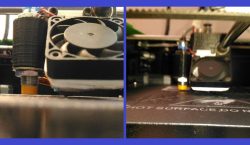
Yes, it is possible to build a basic 3D printer using an Arduino UNO, but there are some limitations to consider:
1. Processing Power and Memory: The Arduino UNO has limited memory and processing power, which restricts the complexity and speed of a 3D printer. It may be slow and less efficient than printers built with more advanced boards like the Arduino Mega or other microcontrollers with higher specs.
2. Firmware Compatibility: Firmware like Marlin (often used in 3D printers) requires more memory than the UNO offers. Alternatives, such as Teacup or GRBL, are lightweight options that can work with the UNO. However, they support fewer features and may not provide the same performance or quality as Marlin.
3. Limited Control for Components: 3D printers usually need multiple stepper motor drivers (for the X, Y, Z axes, and the extruder motor) and temperature control for the hot end and heated bed. The UNO has fewer I/O pins, which may restrict the number of components you can control directly. Additional hardware or a multiplexer might be needed to work around these limitations.
4. Project Scope: An Arduino UNO-based 3D printer is usually considered a DIY experimental project rather than a high-performance machine. It can work for simple 3D printing tasks or as an educational model to learn the basics of CNC and motion control.If you’re interested in building one, there are open-source projects and guides available for Arduino UNO-based 3D printers that outline the setup process and the parts you’ll need. For better performance, though, upgrading to an Arduino Mega or a dedicated 3D printer controller board is recommended.
Creating a 3D printer with an Arduino UNO can be a fun and challenging project.
Here’s a detailed outline of what you’ll need, the components involved, and steps to build a basic 3D printer:
1. Project OverviewGoal: Build a simple, small-scale 3D printer controlled by an Arduino UNO.Limitations: Due to the limited memory and processing power of the UNO, this printer will be slower and have a smaller build volume. It’s ideal for educational purposes and understanding the basics of 3D printing mechanics.Firmware: Use Teacup or GRBL firmware, which are lightweight options that can be modified for 3D printing.
2. Components RequiredMicrocontroller: Arduino UNO.Stepper Motors and Drivers: At least four NEMA 17 stepper motors are commonly used for the X, Y, Z axes, and the extruder. Stepper motor drivers like A4988 or DRV8825 are also required.Heatbed: Optional for small prints but useful to reduce warping.Hotend: This is the part that heats and extrudes the filament. You’ll need a 3D printer hotend compatible with the filament type you plan to use (typically PLA for beginner projects).Power Supply: 12V or 24V DC power supply, depending on the specifications of the motors and heating elements.Frame: Typically made from aluminum or acrylic; you can repurpose materials from a CNC or laser cutting machine.Endstops/Sensors: Mechanical or optical endstops are required for each axis to define the printer’s movement limits.Filament Feeder: Extruder assembly for feeding filament to the hotend. A direct drive or Bowden extruder system can be used.Cooling Fans: Small 12V fans for cooling the hotend and filament as it prints.
3. Assembly StepsFrame Construction: Begin by assembling the frame. This will serve as the structure that holds all components.Install X, Y, and Z Motors: Mount the stepper motors and attach them to each axis. Connect the belts or lead screws for movement, ensuring they’re tightly in place.Install Hotend and Heatbed: Mount the hotend on the X-axis carriage and secure the heatbed to the frame. The heatbed can be fixed or adjustable, allowing you to calibrate the print surface.Endstops: Mount endstops on each axis to define the movement boundaries.Filament Feeder/Extruder: Set up the extruder and connect it to the hotend, ensuring filament can be fed smoothly through the feeder and hotend.
4. Electronics SetupConnect Stepper Drivers to Arduino: Attach the stepper motor drivers (e.g., A4988) to the Arduino UNO. Connect each motor driver to its respective stepper motor.Wire the Endstops: Connect the endstops to the Arduino inputs, configuring them to halt movement when triggered.Power Connections: Connect the 12V or 24V power supply to the stepper drivers and Arduino (via a voltage regulator if necessary).Hotend and Heatbed Control: Attach MOSFETs or relays to control the heating elements. A small power transistor or relay circuit can control the hotend heater and heatbed if using the limited power outputs of the UNO.
5. Firmware and Software SetupFirmware Installation: Install Teacup or a modified version of GRBL onto the Arduino UNO. These firmware options are minimalistic and can control basic 3D printer functions, but you’ll need to tweak the code to match your setup.Calibration: Adjust settings in the firmware for your specific hardware, including motor steps per mm, maximum feed rates, and temperature control.Slicing Software: Use slicing software (like Cura) to convert 3D models into G-code that the printer can read. Since this is an Arduino UNO-based setup, ensure that the generated G-code is compatible with Teacup or GRBL.
6. Testing and CalibrationAxis Movement: Test each axis to ensure smooth movement. Adjust the motor driver current to prevent overheating and fine-tune the movement speed for reliable performance.Extruder Calibration: Calibrate the extrusion rate to ensure the correct amount of filament is fed through the hotend.Bed Leveling: Manually level the bed by adjusting its screws or using a bed leveling sensor.Print Tests: Start with small calibration prints, like a 20mm cube, to ensure all components are working together. Adjust temperature, feed rate, and other settings based on initial print quality.
7. Challenges and ConsiderationsLimited Speed and Accuracy: The Arduino UNO may struggle with larger or high-detail prints due to limited processing power.Firmware Limitations: You won’t have access to advanced features found in professional 3D printer firmware (e.g., mesh bed leveling or high-speed printing).Cooling: Limited control for cooling fans could affect print quality, especially for complex parts.
8. Future UpgradesIf you enjoy the project and want better performance, consider:Upgrading to an Arduino Mega for more memory and I/O options.Adding a dedicated 3D printer controller like a RAMPS board.Using Marlin firmware, which offers greater flexibility and advanced features for 3D printing.SummaryThis Arduino UNO-based 3D printer can be an excellent introductory project to understand the fundamentals of 3D printing mechanics and firmware control, though it has limitations. It’s ideal for small, simple prints and as a learning tool for those exploring the basics of CNC and 3D printing.
Here’s a basic example of Arduino code to control a 3D printer using GRBL firmware with an Arduino UNO. This code is simplified and may require adjustments based on your specific setup, especially for stepper motors, endstops, and temperature control.
For this example, you’ll need:GRBL installed on your Arduino UNO.
Download and install it here.A G-code sender software (like Universal G-code Sender) to send 3D printing commands to the Arduino.
1. Install GRBL Firmware on Arduino UNOGRBL is a popular open-source firmware for CNC machines and basic 3D printers.
Here’s how to install it:Download the GRBL library from the GitHub repository.Open the Arduino IDE and add GRBL as a library (Sketch > Include Library > Add .ZIP Library).Upload GRBL to the Arduino UNO by opening the example file (File > Examples > grbl > grblUpload), then click “Upload”.
2. Configuring GRBLAfter uploading GRBL to the Arduino, you can configure settings by connecting to the Arduino with a G-code sender software (like Universal G-code Sender). Here’s a basic configuration command setup:$100=250.0 ; X-axis steps/mm (adjust based on your motor and setup)$101=250.0 ; Y-axis steps/mm$102=250.0 ; Z-axis steps/mm$110=500.0 ; X-axis max rate, mm/min$111=500.0 ; Y-axis max rate, mm/min$112=500.0 ; Z-axis max rate, mm/min$120=10.0 ; X-axis acceleration, mm/sec^2$121=10.0 ; Y-axis acceleration, mm/sec^2$122=10.0 ; Z-axis acceleration, mm/sec^2Adjust these settings based on your stepper motors and mechanics (like lead screws or belts).
3. Basic G-code Commands for TestingOnce GRBL is configured, you can send G-code commands to move the printer’s axes and test the motors. Here are a few basic commands:G0 X10 Y10 Z0 ; Move to X=10, Y=10, Z=0 at the default travel rateG1 X0 Y0 F500 ; Move to X=0, Y=0 with feed rate of 500 mm/minM3 S100 ; Enable the extruder (typically used for spindle control)M5 ; Turn off the extruder/spindle
4. Adding EndstopsIf you have endstops, you can wire them to the Arduino’s limit switch pins (typically, D9, D10, and D11 for X, Y, Z in GRBL). In GRBL, enable the limit switches:$21=1 ; Enable hard limits (endstops)$22=1 ; Enable homing cycle5. Temperature Control (for Extruder)GRBL does not support temperature control out-of-the-box, so you’ll need to manage heating separately. Here’s a simple example of temperature control code in Arduino (separate from GRBL) for the extruder using a thermistor and a heating element.Upload the following code to a separate Arduino board if needed:#define TEMP_PIN A0 // Analog pin connected to thermistor
#define HEATER_PIN 3 // Digital pin connected to heater relay or MOSFET
#define TEMP_SETPOINT 200 // Set desired temperature in Celsiusfloat readTemperature() { int raw = analogRead(TEMP_PIN); float voltage = raw * (5.0 / 1023.0); float resistance = (5.0 – voltage) * 10000 / voltage; float tempCelsius = 1 / (0.001129148 + (0.000234125 * log(resistance)) + (0.0000000876741 * pow(log(resistance), 3))) – 273.15; return tempCelsius;}void setup() { pinMode(HEATER_PIN, OUTPUT); Serial.begin(9600);}void loop() { float temperature = readTemperature(); Serial.print(“Temperature: “); Serial.println(temperature); if (temperature < TEMP_SETPOINT) { digitalWrite(HEATER_PIN, HIGH); // Turn heater on } else { digitalWrite(HEATER_PIN, LOW); // Turn heater off } delay(1000); // Wait 1 second between readings}
This code reads the temperature from a thermistor and turns the heater on/off to maintain the setpoint temperature. Adjust TEMP_PIN, HEATER_PIN, and TEMP_SETPOINT based on your hardware.6. Starting a PrintUse slicing software (like Cura) to prepare a 3D model and generate G-code, which you can then send to the printer using Universal G-code Sender or another GRBL-compatible G-code sender.This setup covers the basics of a simple 3D printer using Arduino UNO and GRBL. It’s a minimalist configuration, so for more complex printing, consider upgrading to an Arduino Mega or using a dedicated 3D printer control board.


